
A domain is the most valuable asset for any online business, brand or personal blog. So when it is time to change hands, getting it right is super-important. While the transfer process is not so complex, it is natural to feel a little anxious about it.
I clearly remember the first time I bought an online business and paid for it via a website marketplace, I was super nervous until I actually saw the domain show up in my GoDaddy account.
So here’s my notes that teach you how to transfer domain in GoDaddy. Since GoDaddy is one of the most popular domain registrars, this tutorial specifically covers how to transfer a domain within, into and from GoDaddy. But the domain transfer process is very similar for other domain registrars too.
Table of Contents
When do you need to transfer a domain?
- Consolidating your domains : If you often buy domains, and those are spread across different domain registrars or accounts, it can get hard to track renewals. If you want to streamline your domain registrar accounts and want to consolidate your own domains into one account, you will need to do a domain transfer.
- Buying or Selling : If you buy or sell a domain or a website, a domain transfer to the new owner will need to be done immediately as part of the transition.
Essentially, the new owner will need to have control over the domain registrar’s account, by way of
- Login details for the account where the domain is registered
- The new owner’s contact details (name, e-mail, phone number)should be updated in all relevant sections
How to transfer domain in GoDaddy from one account to another GoDaddy account
This scenario is for you, if you are wondering how to move my domain to another GoDaddy account. In this case, since GoDaddy is the domain registrar for both, the new and the old owner, this is a relatively simple account change.
Before you begin, login to your GoDaddy account and navigate to the Domain Control Center.

- Select the domains that you want to transfer by clicking on the check boxes next to them.
- Click on the ‘Ownership’ link to see the options under that.
- Choose ‘Move to another account’.
- Enter the new account owner’s email address
- You will need to decide if you want to copy the current contact details over to the new account for this domain. If you choose not to copy, the new contact details will have to be approved by both the current owner and the new owner.
When is a domain account change not allowed
- If your domain has expired already or will expire within one day
- If an account change is already in progress
- If a domain contact update has been initiated and awaiting approval
Usually, it is pretty quick easy to transfer domain from GoDaddy to another GoDaddy account. If the domain takes longer than 7-10 days to reflect in the new owner’s GoDaddy account, be sure to raise a support ticket to find out why.
How to transfer domain from GoDaddy account to another domain registrar
Before you begin, login to your GoDaddy account and navigate to the Domain Control Center.
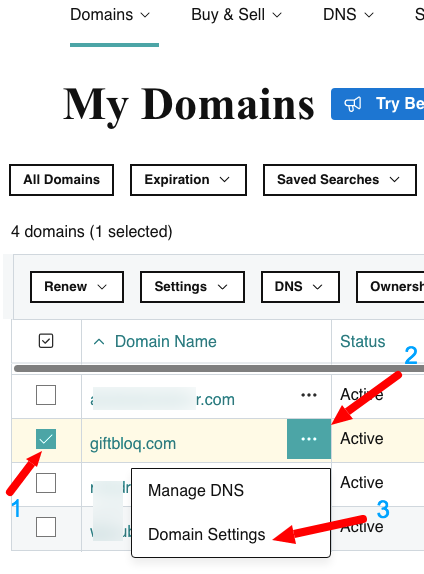
Step 1. Select the domain that you want to transfer by clicking on the check box next to it. Click on the ellipsis next to it and click on the Domain settings.
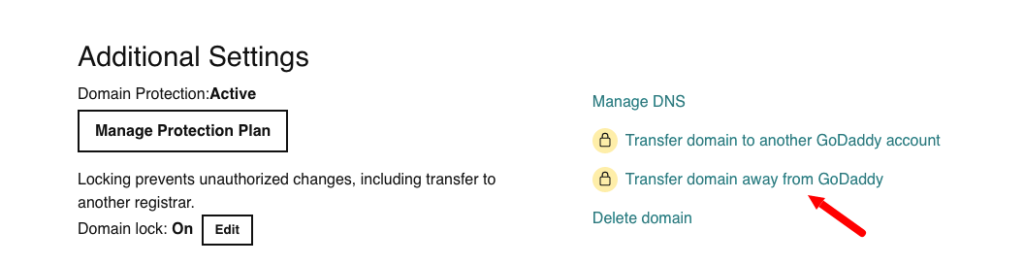
Step 2. Scroll down to view ‘Additional Settings’ and click on ‘Transfer domain away from GoDaddy’
Step 3. You should now see a Domain Transfer Checklist. Read through it carefully and click on ‘Continue with transfer’
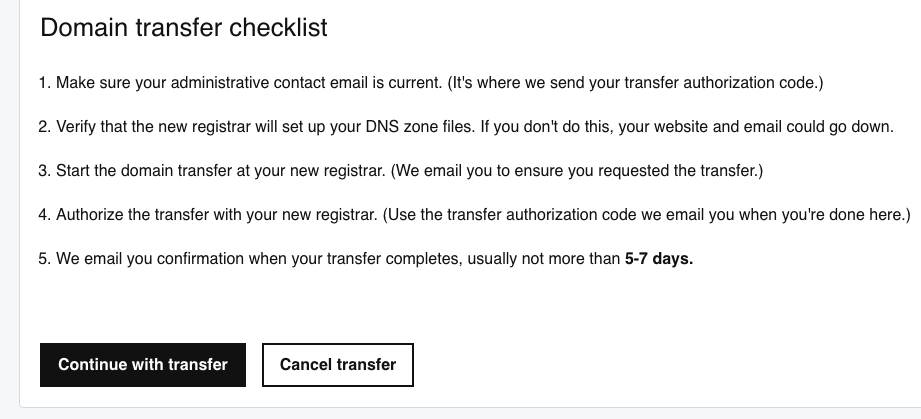
Step 4. Follow the checklist and initiate your domain transfer
When is a domain account change not allowed
- If it has been less than 60 days since the domain was first registered
- If it has been less than 60 days since the domain was transferred to you
- If it has been less than 60 days since the domain contact information was updated, triggering a 60-day lock
How to transfer domain into GoDaddy from another domain registrar
Before you learn how to transfer a domain into GoDaddy, you will need to check with your current domain registrar for the steps needed to prepare your domain for transfer.
Prepare for GoDaddy domain transfer
Typically, here’s what it involves
- Confirm the admin contact details for your domain are accurate and accessible, because that is where key communication during the transfer will be sent.
- Unlock your domain
- Get a transfer key / authorization code / EPP code – from your current registrar
Initiate the domain transfer to GoDaddy
- Look for your domain
- If you see a green tick mark against the domain, it means the domain is unlocked and available for transfer. Else, please unlock the domain and refresh the status again to confirm that it is unlocked.
- Enter your authorization code ( the one that your current registrar gave you )
- Choose your domain privacy options and continue with the payment
- Click ‘Complete Purchase’ to move to checkout and purchase domain name.
Tips for transferring a domain successfully
Double-check contact information
- Ensure all contact information (name, phone number, email id for all contact persons linked to the domain) is up-to-date and accurate – for both, the outgoing and incoming accounts.
- You should be able to log in to the e-mail boxes that you mention, because all important communication during the domain transfer will be sent there.
Be aware of the domain transfer cost that you might incur
- Domain transfers often involve fees that can vary depending on the registrar and the type of domain being transferred.
- When transferring a domain to GoDaddy, for example, there may be an initial transfer fee plus an annual renewal fee.
- Similarly, when transferring a domain away from GoDaddy to another registrar, there may be fees associated with releasing the domain, obtaining the transfer authorization code, and initiating the transfer.
- In some cases, there may also be additional fees for privacy protection or domain forwarding services.
- It’s important to carefully review the transfer fees and any additional charges before initiating a domain transfer. These fees can add up quickly, particularly for premium domains or domains with a high level of traffic or backlinks.
- On the other hand, some registrars may offer discounted or waived transfer fees as part of a promotion or as a way to attract new customers.
To avoid unexpected fees, it’s important to read the terms and conditions of the registrar carefully and to understand all the costs associated with domain transfers. In some cases, it may be more cost-effective to renew a domain with the current registrar rather than transferring it to a new one.
It’s also a good idea to compare prices and features between different registrars to ensure that you are getting the best value for your domain.
Ultimately, understanding the fees and charges associated with domain transfers can help you make a sensible decision about where to register and manage your domains.
Domain Transfer failed? Reasons and Troubleshooting
When transferring a domain, it’s not uncommon for issues to arise that can delay or prevent the transfer from being completed successfully.
Some common reasons why domain transfers fail are –
- Incorrect transfer authorization codes
- Domain has not been unlocked
- Incorrect contact information, because of which approval emails or confirmations related to the domain transfer may not be received and acted upon as needed.
- 60-day waiting period is not over. The domain remains locked for 60 days after the domain was first registered, last renewed or owner contact details have been changed.
- Domain expired (should be first renewed and then transferred)
- Domain has privacy settings on (must be turned off)
To troubleshoot these issues, it’s important to double-check all the information that is required for the transfer and to ensure that it is accurate and up-to-date. If the transfer fails, it may be necessary to contact customer support or the registrar to resolve the issue.
Frequently Asked Questions
What is EPP code GoDaddy?
EPP literally stands for Extensible Provisioning Protocol. A GoDaddy EPP code is a transfer key or an authorization code that you need to get from the current domain registrar when you want to transfer the domain to GoDaddy (or another registrar).
How long does a GoDaddy account change take?
A GoDaddy domain transfer usually takes anything between 5 to 7 days. You should see the status ‘GoDaddy account change in progress’ until the transfer is complete.
In Conclusion
Domains are the most precious asset for an online business. Be extremely careful while transferring your domain. Read all notifications and warnings that the domain registrars might share with you during the process.
I hope this domain transfer guide has taught you everything about how to transfer domain in GoDaddy while making sure your domain is safe and secure all throughout the process.
P.S. Still struggling to complete your domain transfer? Watch this video tutorial by GoDaddy
Recommended Reading – How to purchase a domain that is currently available (owned by anyone).
Photo Credits : Featured Image by Igor Miske on Unsplash