
Why disable comments on WordPress websites?
Yes, comments are a brilliant way for a post’s author to collect direct feedback about the article. It also serves to make the discussion feel more interactive and complete, especially if readers leave meaningful, insightful comments, based on their own experience. Most blogs encourage their readers to leave comments, because it gives new readers a (sort of) measure of how popular the website is or at the very least how popular that particular WordPress post is.
However, at times, some blog owners do choose to disable comments on WordPress websites – primarily because of the menace of comment spam or because their website does not need user interaction via comments.
In any case, since you are here, I am presuming you have your own valid reasons to turn off comments on your WordPress website.
So dive in and find out how to remove ‘Leave a reply’ in WordPress.
WordPress How to disable comments for new posts
Here’s how you can turn off comments on all your new (not yet published) posts
- Log in as administrator in to your WordPress website
- Navigate to Settings –> Discussion via the side menu in your WordPress Dashboard
- Uncheck the box Allow people to submit comments on new posts under Default post settings
- Click Save to save these settings
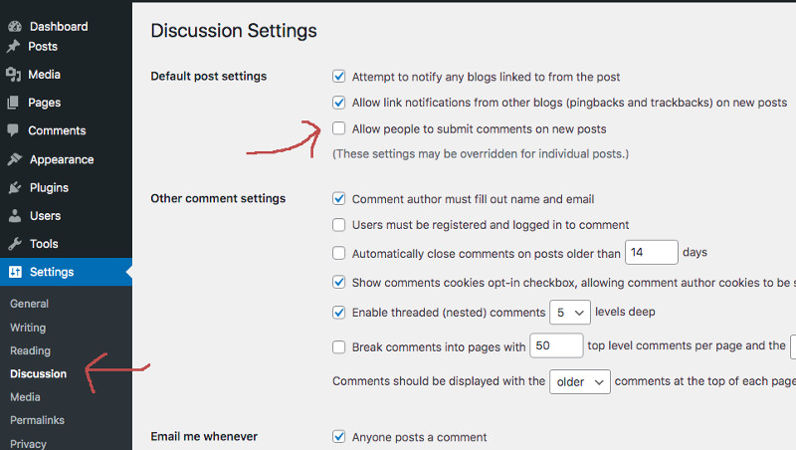
This will only prevent anyone from commenting on any new posts that you publish here on. Users will still be able to comment on the posts that have been already published on your website. If you want to close existing posts too for comments, read on.
How to turn off comments for all already published posts
If you would like to prevent readers from leaving comments on your existing posts, then you can do that by bulk editing them as described in the steps below.
1. Log in to your WordPress website as administrator
2. Navigate to Posts–> All Posts
3. Click on the Published tab
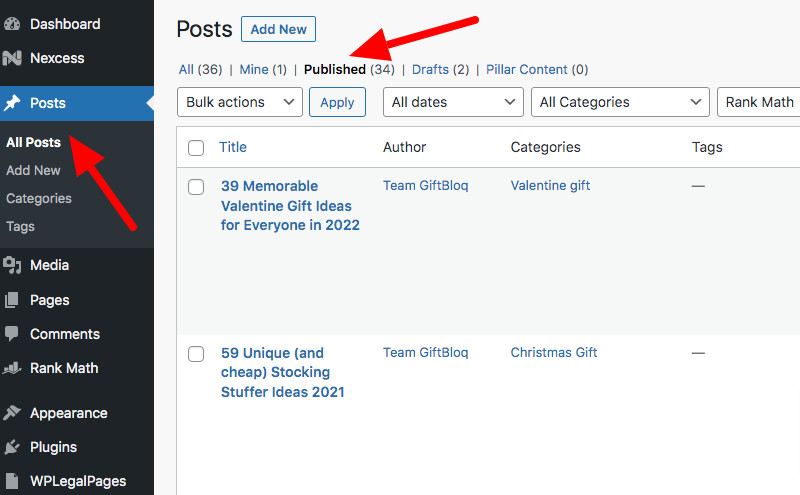
4. Click on the topmost checkbox to select all posts displayed on the screen
5. Click on Bulk Actions and choose Edit
6. Click the Apply right next to the Edit dropdown
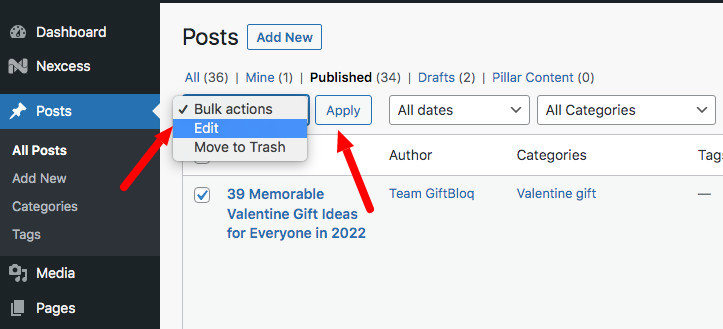
7. Click on the Comments dropdown and select Do not allow to disable comments for the selected posts.
8. Click on the Update button
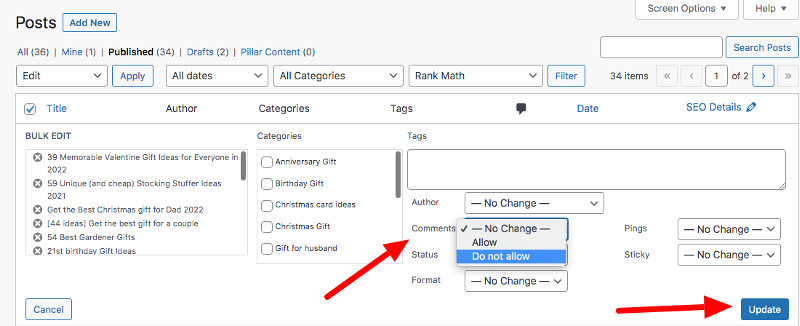
Alternatively, if you have comments disabled for the entire site, but want to allow comments for some posts, you can follow these same steps and choose Allow for the selected posts.
Note : The process described below will only impact the posts you have selected – usually defaults to 20. If you have more than 20 posts, you could change the number of items displayed using the Screen options pull down on the topmost right corner. You could then select all and update all your posts in one go, following the steps listed above.
How to enable or disable comments for a single post or page
By default, WordPress pages have comments disabled, but you can choose to enable them for a particular page.
And even if you have switched off commenting for your website, you can still enable it for an individual post (or posts). Or vice versa – if you have enabled comments for your website, but want to disallow comments on an individual post, you can do that too. Basically, you can override your site-wide comment preferences selectively on certain posts or pages.
Method A : Quick Edit a post and disable comments
1. Log in to your WordPress website as administrator
2. Navigate to Posts–> All Posts
3. Select the post you are looking for and click on Quick Edit
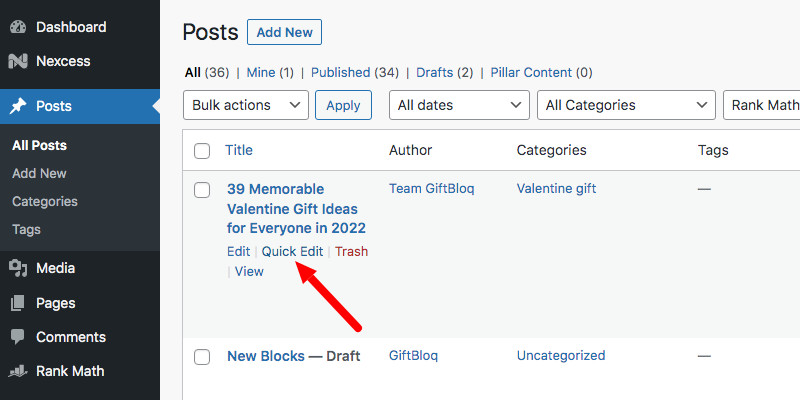
4.. Uncheck the Allow Comments checkbox to disable comments for that post and click on Update to save your changes.
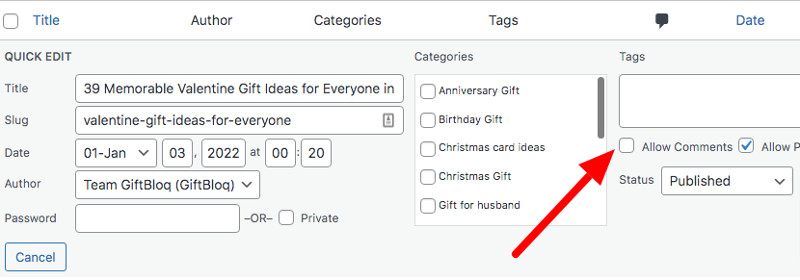
You can follow the same steps for pages too.
Method B : Edit a post and disable comments
1. You can also disable comments for a WordPress post in Edit mode (open it for editing).
2. Go to Settings -> Post -> Discussion and uncheck the Allow Comments checkbox.
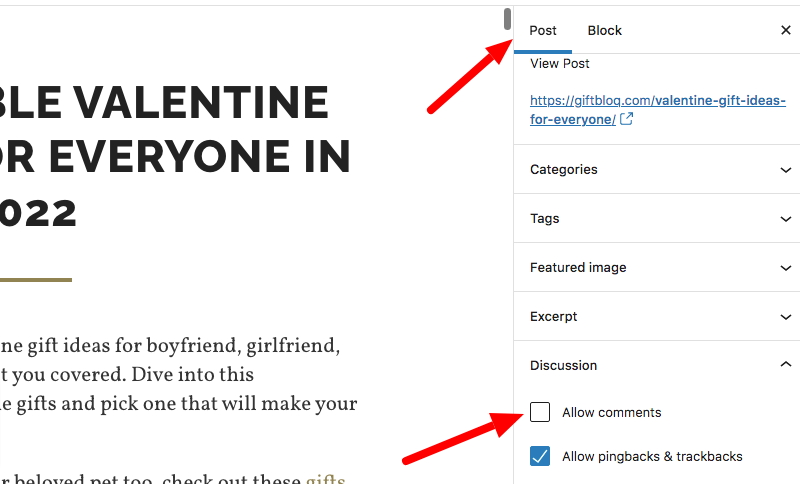
3. Click on Update to save your changes
WordPress : How to disable comments using a plugin
Disable Comments (free WordPress plugin) is the easiest way to manage and control your website’s comments, if you are not quite familiar with WordPress and don’t want to bother with the steps listed in the sections above.
Download Disable Comments plugin for free
Refer to Documentation for the plugin to set this up and manage your comments.
In Conclusion
Your website’s comments are an important aspect of your website. You really should give enough thought to your website’s comment strategy, before implementing any of this.
Do you still have some questions? Do you know of a better way to do this? Leave a comment and share your experience. ( Yes, we welcome comments!)
Photo Credits : Featured Image by Werner Moser from Pixabay